If you’ve planned a trip to Walt Disney World, you’ve probably heard about the My Disney Experience app. This app is a must-have for streamlining your trip and making things much easier. Below, we’ll cover the essential features of the app, as well as some lesser-known tips to help you during your visit.
1. Set Up Your Account
Make sure you have a My Disney Experience account. If not, click here to create one.
If you already have a Disney+, Hulu, or other Disney account under your email, you can use the same login.
Link a credit card to your account for easy payments during your trip.
Forgot your password? Simply reset it to create a new one.

2. Download & Open the App
- Download the My Disney Experience app and log in.
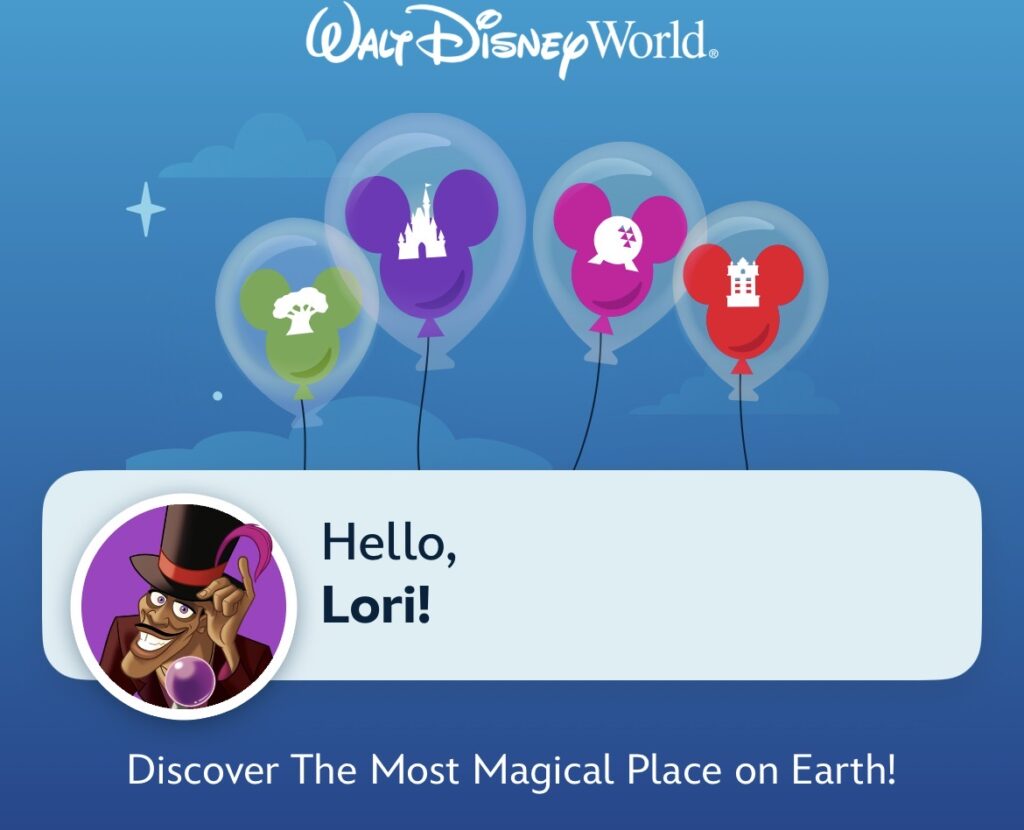
- On the home page, you’ll see your name (and character if chosen) at the top.
Home Page Features:
Lightning Lane Multi Pass/Single Pass – skip the line info, purchase and schedule
Disney Lightning Lane Premier Pass banner – skip the line without having to schedule
Other things to note on the home page: Disney Genie Service, Park Hours, Park articles, PhotoPass, etc.

Moving onto another area of the app, click on the location button directly next to the home button. Here you’ll find wait times, dining, attractions, entertainment, characters, restrooms, shops, transportation, guest services, events & tours, PhotoPass, and resort hotels. You can filter by park or Disney Springs.
If you click on a specific thing, such as an attraction, resort or restaurant, you can also get directions to it. This is a very helpful tool when navigating the parks!

The third button you’ll see at the bottom is the “+” sign. This is one of the most useful tools, as you can do many things through this: Check dining availability, order food, merchandise mobile checkout (shop in store), shop Memory Maker, buy tickets and passes, make or modify a park reservation, view wait times, and showtimes.

The next button is the search function which is also helpful. You can even search for a specific food or drink, and it will pull up locations to find it.

The last thing you’ll see are the 3 bars in the lower right-hand corner (people often refer to this as the hamburger button). I end up using this more than anything else. There are so many helpful tools located here:
1. My Tickets and Passes – you’ll find your tickets/passes linked here, or you can link them by selecting the “+” button in the upper right-hand corner.
2. Reserve Dining– it will prompt you to log in if you aren’t already, and then search for dining reservations.
3. Merchandise Checkout – click here to see which stores are offering this service. Once in that store, you’ll choose your items, open up this tab, scan your items, and pay, then take the screenshot of your receipt to the kiosk where they’ll check your order and bag your items. That’s it! This is a great tool to avoid waiting in the long checkout lines.
4. Lightning Lane Passes – You can also click here to purchase or learn more about Lightning Lanes.
5. Order Food – click here to order food and select arrival times for pickup. You can also access any of your Mobile Orders here, and change arrival time, cancel an order, or make a new Mobile Order. They have options for every park, and Disney resorts as well.
6. Notifications– you’ll see any of those here
Below those main tabs, you’ll find these sections:
Wait Times & Showtimes- check here for standby wait times, and the next available timeslots for Lightning Lanes. This is where you’ll book your Multi Pass and Single Pass Lightning Lanes. If a ride is down or if the Lightning Lane is completely booked for the day, you’ll see that noted here.
My Plans– check here for your daily plans, including dining reservations and Lightning Lane times, and more
Hotel Reservations– see details of your resort, your room number once assigned, using the app as a digital key, unlocking your door, mobile check-in, resort map, view charges, view MagicBands, get directions, call Resort hotel, and more
Virtual Queue– click here to access any virtual queues (you can also do this from the main page)
Disney Photopass (photo gallery, photopass lenses, shop memory maker) Disney PhotoPass will show all of your pictures and videos, or you can link photos through that tab as well. TIP: After clicking on photo gallery, link photos, click on “Show PhotoPass Code” and take a screenshot of it to make it easier when showing to the photographers. That way you won’t have to go through the app to locate it each time. Or you can scan your MagicBand or PhotoPass card each time
Getting Around (car locator, transportation, and parking)
Plan Your Next Visit (buy tickets & passes, park reservations,, park hours, and info)
Disney Account (profile, link to account, MagicBands and cards, set up MagicMobile Entry)
Help & Feedback (help, accessibility & health services, Cast Compliments, privacy & legal) The Chat with us feature here is very helpful. Simply send a message and a Cast Member will reply fairly soon.
Accessibility & Health Service If you have any sort of accessibility need, or any medical issues arise during your trip, click here for plenty of information, including video health visits, urgent care info, prescription delivery info, and much more.
Chat With Us- this is extremely useful during your trip. If you are running late for a dining reservation, need a question answered, or anything else, you can chat with a Cast Member to help. There are long waits at times, but it’s been very helpful to us during our trips.
Cast Compliments– if you experience a wonderful Cast Member, click here to acknowledge them. You’ll need their name, and it’s best if you know what city/state they’re from.
Privacy & Legal section
As you can see, the My Disney Experience app offers countless features to make your trip easier and more enjoyable. I highly recommend exploring the app before your visit—taking the time to browse restaurant menus and plan your activities can really enhance the experience. We always enjoy doing this ourselves and think you’ll find it helpful as you prepare for your trip. I hope this makes your planning process a little smoother.
Ready to plan your visit to the magic? Email me for a no-obligation quote, and I’ll help you plan the most magical vacation! My services are complimentary when you book with me, including all my tips and advice.
For a quick quote, please fill out this form.
Don’t forget to follow us on Facebook for all the latest blogs and news!
 using WordPress and
Comments are closed